

Nebula Logger Salesforce: The Complete Setup, Usage & Best Practices Guide

Here’s a scenario every Salesforce developer knows well. A client calls on a Friday afternoon: “Something broke in production last night — orders aren’t going through.” You pull up the debug logs. They’re gone. Salesforce only keeps them for 24 hours, and even when they’re present, sifting through thousands of lines of raw text to find one exception is, frankly, a miserable experience
That’s the exact problem Nebula Logger for Salesforce was built to solve. It’s not a workaround or a patch — it’s a fully native, open-source Salesforce logging framework that stores log entries as custom object records, making them searchable via SOQL, reportable in dashboards, and permanently available until you choose to purge them.
This guide covers everything: what Nebula Logger is, how to install it step-by-step, how to use it across Apex, LWC, Aura, Flow, and OmniStudio, the save methods you need to understand, 12+ best practices, governor limits considerations, and real-world use cases. Whether you’re a Salesforce Admin trying to debug a rogue Flow or a senior developer building enterprise observability, you’ll find what you need here.
Who this post is for: Salesforce Developers, Admins, and Architects who need reliable Salesforce production debugging, structured logging, and cross-platform observability.
What Is Nebula Logger and Why Do You Need It?
Nebula Logger is a 100% native, open-source Salesforce debugging tool built by Jonathan Gillespie. It works across every major Salesforce automation layer — Apex, Lightning Web Components, Aura, Flow, and OmniStudio — and persists log data as structured records in custom objects (Log__c and LogEntry__c).
The core problem it solves: System.debug() is useless for production debugging. Logs expire in 24 hours, you can’t run SOQL against them, you can’t attach them to a Slack alert, and they don’t work at all in Flow or LWC without workarounds. If you’ve ever stared at a blank debug log viewer knowing that the error happened hours ago, you understand the pain.
System.debug() vs. Nebula Logger Salesforce: A Direct Comparison
| Capability | System.debug() | Nebula Logger Salesforce |
|---|---|---|
| Log Retention | 24 hours maximum | Permanent (custom object records) |
| Searchability | Limited — debug log viewer only | Full SOQL, Reports, List Views, Dashboards |
| Cross-Platform Support | Apex only | Apex, LWC, Aura, Flow, OmniStudio |
| Structured Data | Plain text strings | SObject records, exceptions, JSON payloads |
| Real-Time Monitoring | None | Live stream via Platform Events |
| Tagging & Categorization | Not possible | Tags, Scenarios, custom grouping |
| Data Masking | None | Custom Metadata rules for PII/PHI/PCI |
| Salesforce Production Debugging | Very limited | Full support — built for production |
| Flow Debugging | No built-in support | Native invocable actions |
| LWC Logging | Browser console only | Persisted as LogEntry__c records |
Nebula Logger Architecture: How It All Fits Together
Nebula Logger uses a platform-event-driven architecture. Your logging calls queue entries in memory. When you call saveLog(), the entries fire as LogEntryEvent__e platform events, which are caught by a trigger and written to custom objects. The result: your transaction stays fast and non-blocking, while logs flow asynchronously into persistent storage.
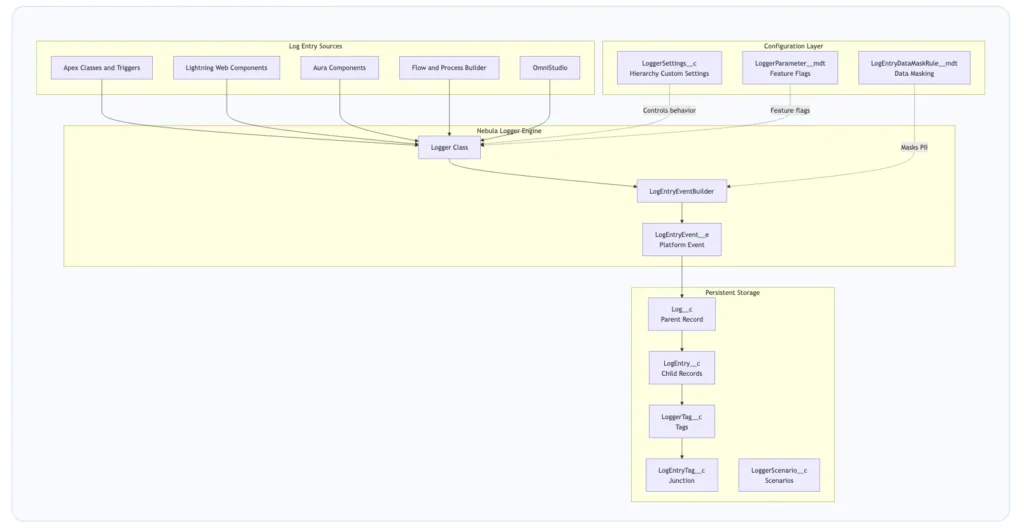
Figure 1: Nebula Logger Salesforce architecture — from log source through the engine to persistent storage and configuration.
Core Custom Objects Reference
| Object API Name | Role in the Framework |
|---|---|
Log__c |
Parent record — one per transaction. Holds metadata like origin, scenario, and duration. |
LogEntry__c |
Individual log entries. Child of Log__c. Stores message, level, stack trace, and related record. |
LoggerTag__c |
Reusable tag definitions for categorization across entries. |
LogEntryTag__c |
Junction object linking LogEntry__c records to LoggerTag__c records. |
LoggerScenario__c |
Groups related logs under a named business scenario for filtered reporting. |
Once a Log__c record exists, it’s just a Salesforce object. Build reports on it, write SOQL against it, create list views, trigger automations, or send Slack alerts when ERROR level entries appear. That’s what real Salesforce observability looks like in practice.
Nebula Logger Installation: Step-by-Step Setup Guide
This Nebula Logger setup guide walks through every step from package selection to your first log entry. Budget about 20 minutes for a clean installation.
Step 1: Choose Your Package Type
| Consideration | Unlocked Package | Managed Package |
|---|---|---|
| Namespace | None | Nebula |
| Release Cadence | Faster — patch-level updates | Slower — minor version releases |
| Source Code Access | Fully visible and editable | Protected |
| Plugin Framework | Supported | Not available |
| System.debug() Integration | Automatic | Requires manual configuration |
| AppExchange Distribution | Not applicable | Required for ISV distribution |
| Best For | Internal org tooling, enterprise teams | ISV / AppExchange partner requirements |
Recommendation for 95% of teams: Go with the Unlocked Package. You get full visibility into the source, faster updates, and access to the plugin framework. The only reason to choose Managed is AppExchange distribution.
Step 2: Install the Package
Option A: Browser-Based Installation
Unlocked Package (v4.17.3 — verify latest at the releases page):
- Sandbox:
https://test.salesforce.com/packaging/installPackage.apexp?p0=04tg70000001IMHAA2 - Production:
https://login.salesforce.com/packaging/installPackage.apexp?p0=04tg70000001IMHAA2
Option B: Salesforce CLI Installation
# Unlocked Package — recommended for most teams
sf package install --wait 20 --security-type AdminsOnly --package 04tg70000001IMHAA2

# Managed Package
sf package install --wait 30 --security-type AdminsOnly --package 04tg70000000r5xAAAbash
Step 3: Assign Permission Sets
Common post-install issue: Users can’t see log records. The cause is almost always missing permission sets — specifically LoggerEndUser not being assigned to general users who trigger logged processes.
| Permission Set | Access Level | Assign To |
|---|---|---|
| LoggerAdmin | Full CRUD on all Logger objects + settings management | Salesforce Admins, DevOps leads, senior developers |
| LoggerLogViewer | Read-only access to Log__c and LogEntry__c |
Support teams, QA engineers, business analysts |
| LoggerEndUser | Minimal permissions to trigger logged processes | All users who run automations, Flows, LWC components |
| LoggerLogCreator | Create log entries programmatically | Integration users, developers calling Logger APIs |
Step 4: Configure LoggerSettings__c
Navigate to Setup > Custom Settings > Logger Settings > Manage and create records at three hierarchy levels:
- Organization Default — The baseline for the entire org. Start conservative:
WARNfor production. - Profile-Level Override — More verbose logging for the System Administrator profile during active development.
- User-Level Override — Temporarily bump a specific user to
FINESTwhen debugging their session.
| Field | Purpose | Recommended Value |
|---|---|---|
DefaultLoggingLevel__c |
Minimum level of entries that get saved | WARN (prod), DEBUG (dev) |
DefaultSaveMethod__c |
Controls how entries are persisted | EVENT_BUS (default — async) |
IsEnabled__c |
Master on/off switch for logging | true |
DefaultLogPurgeAction__c |
What happens when logs are auto-purged | Delete or Archive |
DefaultNumberOfDaysToRetainLogs__c |
Auto-purge schedule | 30 (prod), 90 (sandbox) |
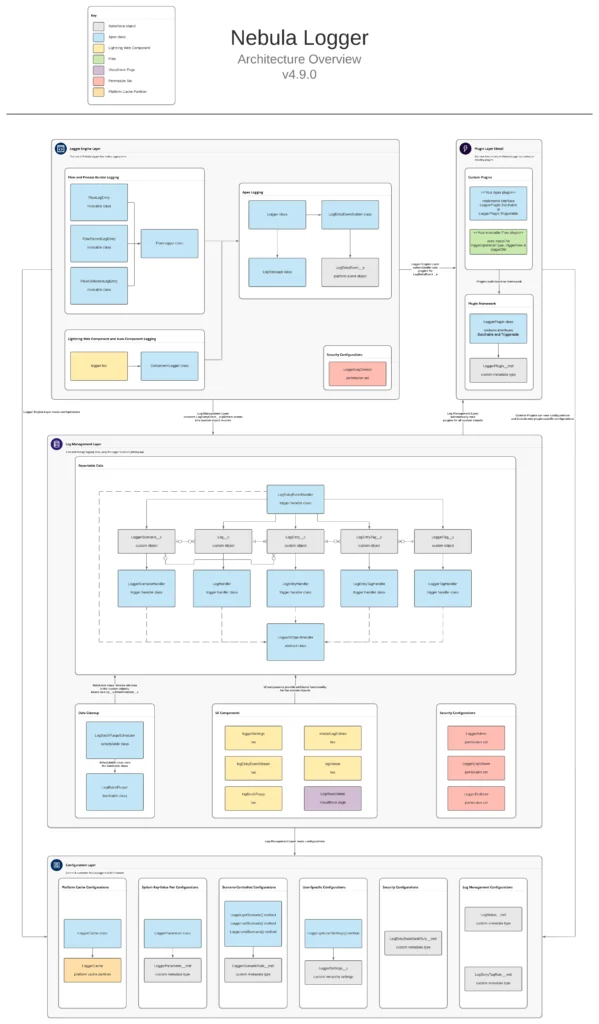
Source– Nebula logger.
Salesforce Apex Logging
This is where most teams start, and where Nebula Logger shines most clearly as a Salesforce Apex logging solution.
Basic Apex Logging
public class AccountService {

    public static void processAccounts(List accounts) {
        // INFO level for business-relevant milestones
        Logger.info('Starting account processing for ' + accounts.size() + ' records');

        for (Account acc : accounts) {
            Logger.debug('Processing account: ' + acc.Name);
        }

        try {
            update accounts;
            Logger.info('Successfully updated ' + accounts.size() + ' accounts');
        } catch (DmlException ex) {
            // Pass the exception directly — Nebula Logger captures the stack trace
            Logger.error('DML failed during account update', ex);
        }

        // Without this line, none of the above entries are persisted
        Logger.saveLog();
    }
}
All Available Logging Levels
Logger.error('Critical failure — data may be corrupted');      // Level: ERROR
Logger.warn('Recoverable issue — retrying callout');             // Level: WARN
Logger.info('Invoice generated for Order: ' + orderId);         // Level: INFO
Logger.debug('Account.Industry value: ' + acc.Industry);        // Level: DEBUG
Logger.fine('SOQL result count: ' + results.size());            // Level: FINE
Logger.finer('Serialized payload: ' + JSON.serialize(payload));  // Level: FINER
Logger.finest('Loop iteration ' + i + ' of ' + total);          // Level: FINEST

Logger.saveLog();
Attaching Records to Log Entries
Instead of logging "Updated Account: 001xxxx", attach the actual record — the full field values are captured at the moment of logging:
Account acc = [SELECT Id, Name, Industry, AnnualRevenue FROM Account LIMIT 1];

// Attach a single SObject record
Logger.info('Account record retrieved').setRecord(acc);

// Attach a list of records
List contacts = [SELECT Id, Name, Email FROM Contact WHERE AccountId = :acc.Id];
Logger.info('Related contacts retrieved — count: ' + contacts.size()).setRecord(contacts);

Logger.saveLog();
Exception Logging with Full Stack Traces
public class OrderProcessor {

    public static void processOrder(Id orderId) {
        Logger.info('Starting order processing').setRecord(new Order(Id = orderId));

        try {
            Order ord = [SELECT Id, Status, TotalAmount FROM Order WHERE Id = :orderId];
            ord.Status="Activated";
            update ord;
            Logger.info('Order activated').setRecord(ord);
        } catch (QueryException qe) {
            Logger.error('Order record not found: ' + orderId, qe);
        } catch (DmlException de) {
            Logger.error('DML error activating order', de);
        } catch (Exception ex) {
            Logger.error('Unexpected error in OrderProcessor', ex);
        } finally {
            // finally block guarantees saveLog() runs even after an exception
            Logger.saveLog();
        }
    }
}
Tagging Log Entries
Logger.info('Initiating callout to Stripe payment API')
    .addTag('Integration')
    .addTag('Stripe')
    .addTag('Billing');

// Tag errors with priority flags for alert routing
Logger.error('Stripe returned 500 — payment processing halted')
    .addTag('Integration')
    .addTag('Stripe')
    .addTag('P1');

Logger.saveLog();apex
Linking Batch Job Logs to a Parent Transaction
public class AccountBatchJob implements Database.Batchable {

    private String parentTransactionId;

    public AccountBatchJob() {
        // Capture the calling transaction's ID before the batch starts
        this.parentTransactionId = Logger.getTransactionId();
    }

    public Database.QueryLocator start(Database.BatchableContext bc) {
        Logger.info('AccountBatchJob — start() called');
        Logger.saveLog();
        return Database.getQueryLocator('SELECT Id, Name FROM Account');
    }

    public void execute(Database.BatchableContext bc, List scope) {
        Logger.setParentLogTransactionId(this.parentTransactionId);
        Logger.info('Batch execute() — processing ' + scope.size() + ' accounts');
        Logger.saveLog();
    }

    public void finish(Database.BatchableContext bc) {
        Logger.setParentLogTransactionId(this.parentTransactionId);
        Logger.info('AccountBatchJob — finish() called — all batches complete');
        Logger.saveLog();
    }
}
Salesforce LWC Logging
Nebula Logger includes a c/logger Lightning Web Component that you import into your own components. Client-side errors that previously disappeared into browser consoles now get stored as LogEntry__c records alongside your Apex logs — this is what makes it a true Salesforce LWC logging solution.
import { LightningElement, api } from 'lwc';
import { getLogger } from 'c/logger';

export default class AccountDetail extends LightningElement {
    @api recordId;

    // Initialize the logger at component level
    logger = getLogger();

    connectedCallback() {
        this.logger.info('AccountDetail component loaded for record: ' + this.recordId);
        this.logger.saveLog();
    }

    handleSave() {
        try {
            this.logger.debug('User triggered save action on record: ' + this.recordId);
            // ... save logic ...
            this.logger.info('Record save completed successfully');
        } catch (error) {
            this.logger.error('Save action failed in AccountDetail').setError(error);
        } finally {
            this.logger.saveLog();
        }
    }
}
Logging in Aura Components
For teams still maintaining legacy Aura components, Nebula Logger works via a child component reference. Include
({
    doInit: function(component, event, helper) {
        var logger = component.find('logger');
        logger.info('Aura component initialized');
        logger.saveLog();
    },

    handleError: function(component, event, helper) {
        var logger = component.find('logger');
        logger.error('Error occurred in Aura component handler').addTag('AuraError');
        logger.saveLog();
    }
})
Salesforce Flow Debugging with Nebula Logger
This is arguably where Nebula Logger adds the most value. Flow debug runs are transient — they don’t persist after the session. With Nebula Logger’s invocable actions, every Flow execution leaves a permanent audit trail, enabling real Salesforce Flow debugging at scale.
Steps to Add Nebula Logger to a Flow
- Open your Flow in Flow Builder
- Drag an Action element onto the canvas
- Search for “Add Log Entry” in the action search panel
- Select the appropriate action type (basic, record, or collection)
- Set the Logging Level field — use
INFOfor milestones,ERRORon fault paths - Set the Message field — reference Flow variables using
{!variableName}syntax - At the end of each terminal path (success and fault), add a “Save Log” action
Logging in OmniStudio
For teams using OmniStudio (Omniscripts and Integration Procedures), Nebula Logger exposes logging via the CallableLogger Apex class as a remote action:
{
    "type": "Remote Action",
    "class": "CallableLogger",
    "method": "log",
    "params": {
        "message": "OmniScript step 3 completed",
        "loggingLevel": "INFO"
    }
}
This keeps your OmniStudio execution traces in the same Log__c / LogEntry__c records as everything else — no separate log store to manage.
Save Methods: How Nebula Logger Persists Your Logs
One of the more nuanced aspects of this Salesforce logging framework is understanding how Logger.saveLog() actually works. There are four save methods, and picking the right one affects your governor limit usage and persistence guarantees
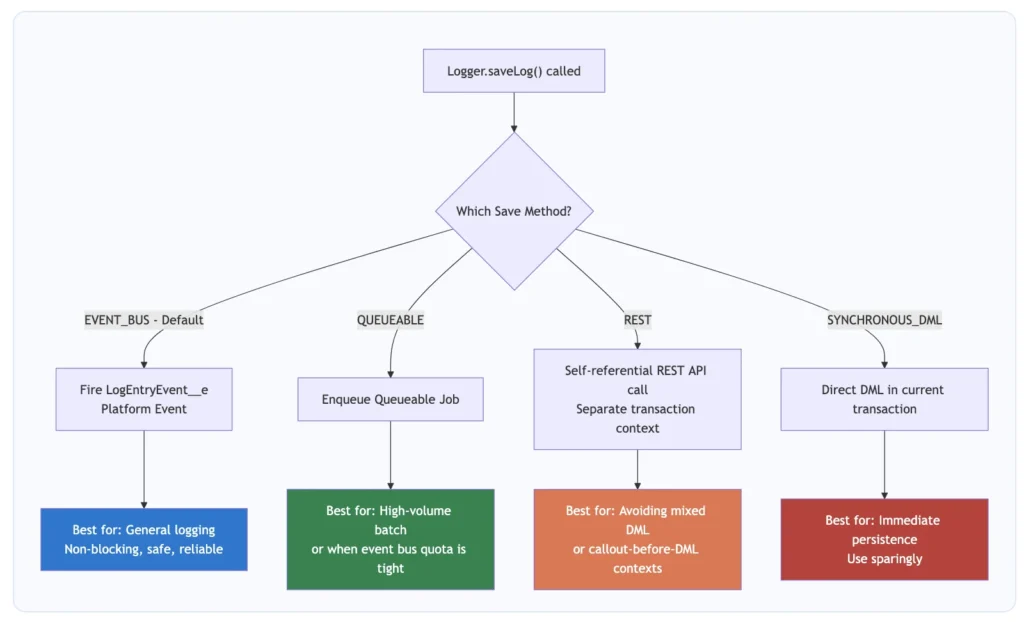
// Use the default (EVENT_BUS) — covers 90% of cases
Logger.saveLog();

// Explicitly specify a save method for this call only
Logger.saveLog(Logger.SaveMethod.QUEUEABLE);

// Set the default save method for the entire transaction
Logger.setSaveMethod(Logger.SaveMethod.REST);
Logger.info('This and all subsequent entries use REST save method');
Logger.saveLog();
Governor Limits: What to Watch With Nebula Logger
| Concern | Impact | Mitigation Strategy |
|---|---|---|
| Data Storage | Log__c and LogEntry__c consume org storage allocation |
Schedule the built-in purge job; set DefaultNumberOfDaysToRetainLogs__c |
| Platform Event Daily Limit | EVENT_BUS fires platform events counted against your daily allocation |
Monitor via Setup > Platform Events > Usage; switch to QUEUEABLE if needed |
| SOQL Queries | Logger configuration queries count toward the 100 SOQL synchronous limit | Logger caches settings — typically 1–2 SOQL queries per transaction |
| CPU Time | Log processing adds CPU time (10-second synchronous limit) | Use FINE/FINEST only temporarily; ERROR/WARN/INFO have negligible overhead |
| Async Job Allocation | QUEUEABLE uses one async job slot per saveLog() call |
Default to EVENT_BUS; use QUEUEABLE only when event bus quota is the constraint |
| Heap Size | Logging large SObject lists serializes them to heap (6 MB synchronous limit) | Avoid .setRecord() on lists of 200+ records in tight heap contexts |
Nebula Logger Best Practices: Rules That Actually Matter
These aren’t generic suggestions — they’re patterns that matter in production environments running this Salesforce logging framework at scale.
Best Practice 1: Always Call Logger.saveLog()
The single most common mistake. Without this call, every entry you logged is permanently lost. No exceptions.
// Wrong — all entries silently discarded at transaction end
Logger.info('Starting process');
Logger.error('Something went wrong', ex);
// saveLog() never called — logs are gone forever

// Correct
Logger.info('Starting process');
Logger.error('Something went wrong', ex);
Logger.saveLog();
Best Practice 2: Put saveLog() in Finally Blocks
try {
    Logger.info('Operation starting');
    // ... logic that might throw ...
    Logger.info('Operation completed successfully');
} catch (Exception ex) {
    Logger.error('Operation failed unexpectedly', ex);
} finally {
    // Runs whether we succeed or fail — guaranteed persistence
    Logger.saveLog();
}
Best Practice 3: Choose the Right Logging Level
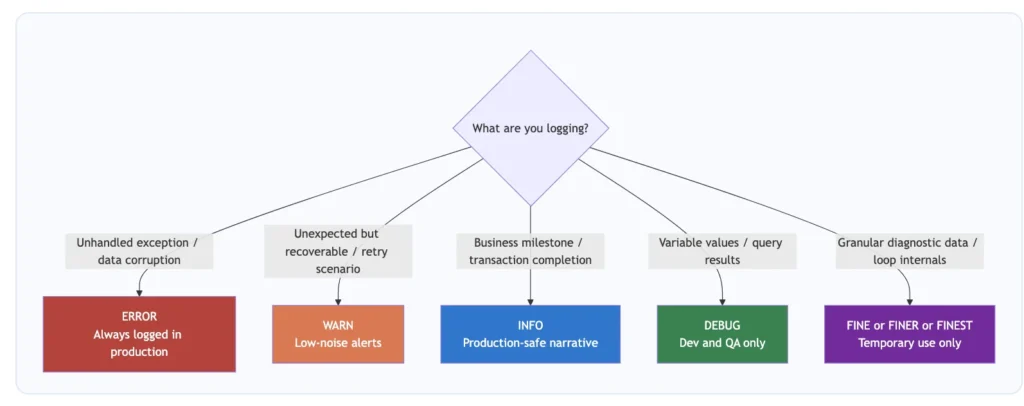
Best Practice 4: Environment-Appropriate Logging Levels
| Environment | Recommended Level | Rationale |
|---|---|---|
| Production | ERROR or WARN |
Capture only actionable issues; protect storage |
| UAT / Staging | INFO |
Full business flow traceability for sign-off testing |
| QA / Testing | DEBUG |
Developer-level detail for QA investigations |
| Developer Sandbox | FINE or FINEST |
Maximum verbosity during active development |
Best Practice 5: Use Scenarios for Business Process Grouping
Logger.setScenario('OrderFulfillment');
Logger.info('Order fulfillment process started for Order: ' + orderId);
// ... fulfillment logic ...
Logger.info('Order fulfillment completed');
Logger.saveLog();
// All LogEntry__c records link to a LoggerScenario__c named 'OrderFulfillment'
Best Practice 6: Attach Records Instead of String-Concatenating IDs
// Do NOT do this — you lose all field values at query time
Logger.info('Updated account: ' + acc.Id);

// Do this — the full SObject is serialized and stored at the moment of logging
Logger.info('Account updated').setRecord(acc);
// Agree on a taxonomy. Examples:
Logger.info('Invoice generated').addTag('Billing').addTag('Revenue');
Logger.info('SAP sync initiated').addTag('Integration').addTag('SAP');
Logger.error('Payment gateway unreachable')
.addTag('Integration').addTag('Stripe').addTag('P1');
Logger.saveLog();Best Practice 8: Implement a Log Purging Schedule
Summary
Nebula Logger won’t fix bad architecture or poorly written Apex. But it will give you a clear window into exactly what your Salesforce org is doing, when it’s doing it, and why things fail — which is exactly what you need when something goes wrong at 2 AM on a Tuesday.
